Your Home dashboard
Home is where you land when you open the portal. It answers one question at a glance: is everything fine? For most people, most days, the answer is yes and there's nothing to do here.
What's on the page
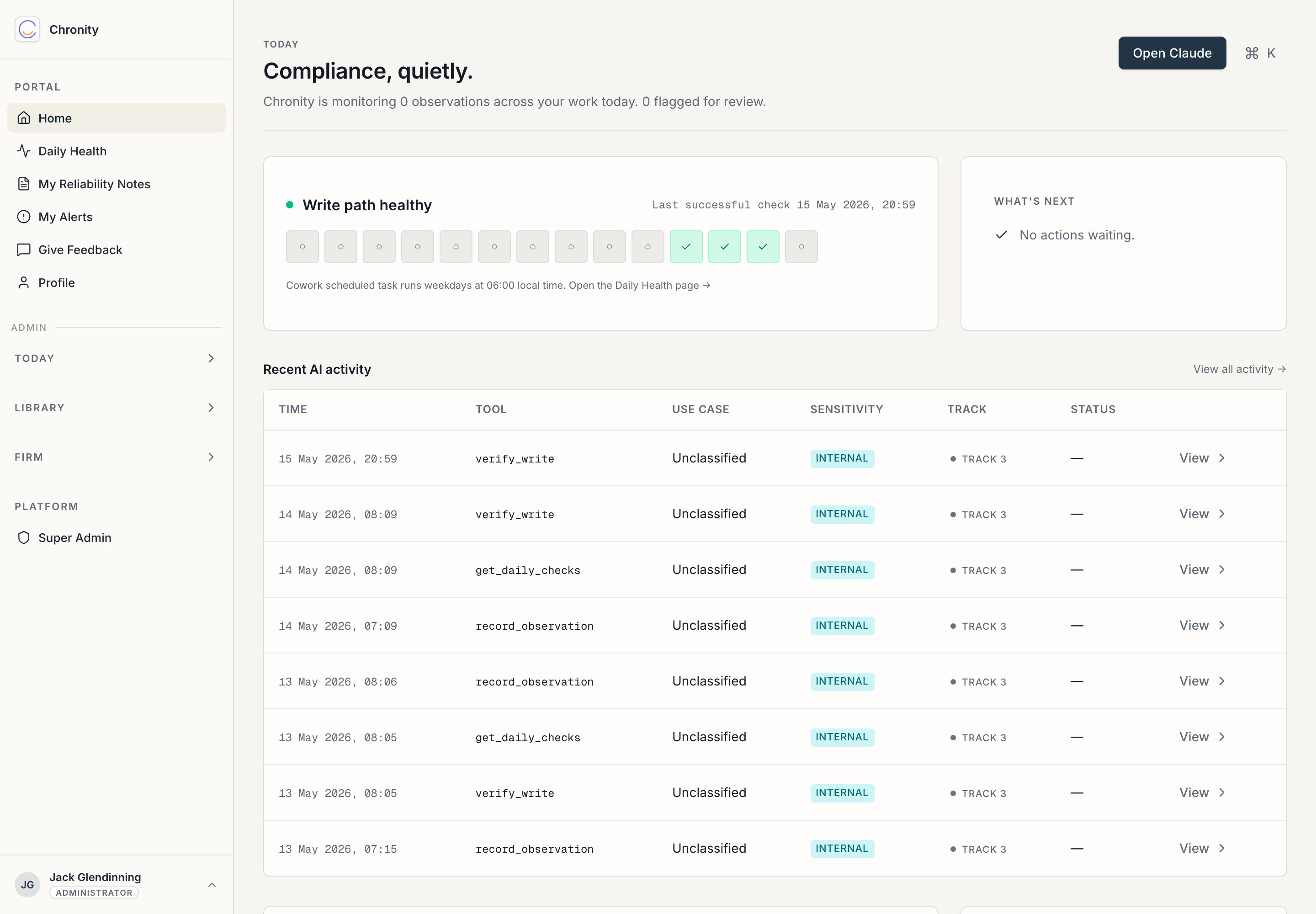
The headline. "Compliance, quietly." and a one-line summary of how much AI activity Chronity is monitoring for you today and how much, if anything, is flagged for review. On a normal day this reads as zero flagged — that's the system working, not a sign nothing happened.
Write path healthy. A row of dots showing the last fortnight of Daily Checks. Green dots mean Chronity's connection to Microsoft 365 has been proving itself each morning. The card tells you when the last successful check was. If you ever see this go amber or red, see Daily Health.
What's next. Anything actually waiting on you. Most days this says "No actions waiting." — which is the design working as intended. If there is something (a reliability note that needs your attention, say), it appears here.
Recent AI activity. The last handful of AI-assisted actions recorded for you: the time, the tool used, the matched use case, its sensitivity, its track, and its status. This is the audit trail, live. "View all activity" opens the full list.
Reliability notes ready to review. A shortcut to any reliability notes drafted in your name that are worth a look. Empty here is normal — notes appear as you complete formal work with Claude.
Open Claude. A direct link back to where the work happens, and a note of when you were last active.
What you should do here
Honestly, usually nothing. Glance at it when you sign in. The two things worth a half-second check:
- Is Write path healthy green? (If not → Daily Health.)
- Does What's next say there's nothing waiting? (If something's waiting, click through — it'll be a reliability note or an alert.)
That's it. Home is a reassurance page, not a workload.
Next: Daily Health.