Your team, seats & billing
This is where you manage who's in the firm and what you pay for it.
Users
Firm → Users is the directory of everyone in the practice.
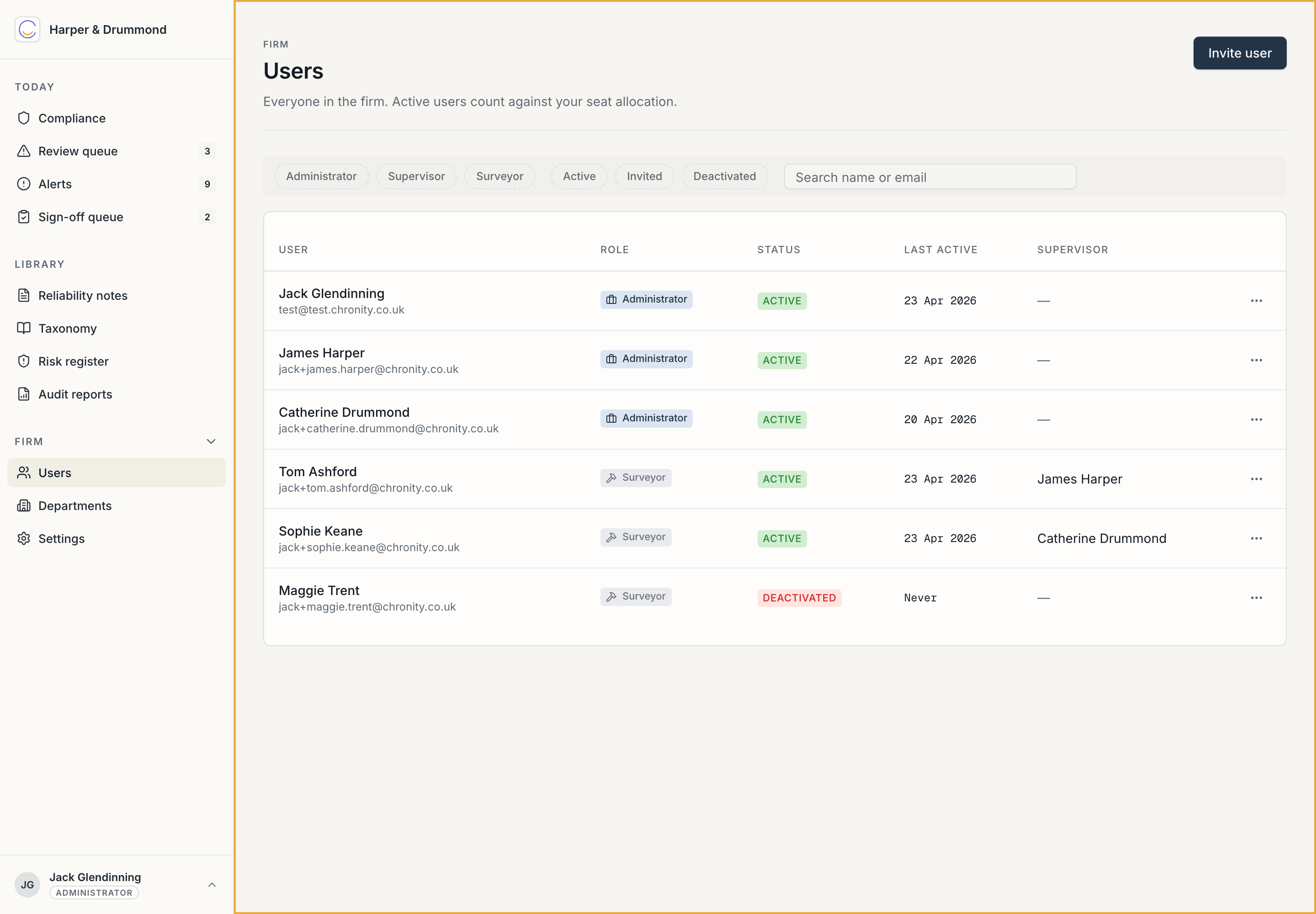
The table shows each person's name and email, role, status, last-active date, and supervisor. The filter chips along the top — Administrator, Supervisor, Surveyor, Active, Invited, Deactivated — let you narrow it, and there's a search box.
Inviting someone
Use Invite user. You'll set their email, role, and department. They get an email with their own setup link; they connect Claude themselves (see User guide → Getting connected). Until they finish, they show as Invited.
What to set on each person
Click a person to open their detail. The three things that matter for compliance:
- Role — Administrator or Surveyor (user). Administrators get the admin portal and see the whole firm. Keep the number of admins small.
- Professional registration — free text such as
MRICS FAAVor Registered Valuer. This marks them as a named qualified surveyor whose formal work can stand under their own name. - Supervisor — for anyone not independently qualified, the qualified surveyor who supervises them. In the example above, Tom Ashford is supervised by James Harper and Sophie Keane by Catherine Drummond — so their Track 1 work is documented under their supervisor's name. This is the supervision requirement of the RICS Standard, expressed as one field. Get it right.
A user-detail page also shows that person's observation and reliability-note counts, their alerts, and — for firms using integrations — their tool allocation.
Deactivating someone
When someone leaves, deactivate them rather than deleting. Deactivation removes their access immediately but keeps their historical records — the audit trail has to survive a departure. In the example team, Maggie Trent is deactivated: she's still in the directory (filter to Deactivated to see her), keeps no access, and her past work remains in the record. Genuinely deleting a user's data is a separate, deliberate, irreversible action behind a confirmation — used only when you have a real reason (a GDPR erasure request, say).
Training records
Annual AI-policy training is a RICS requirement. The Training tab on the Users page tracks who has acknowledged the firm's current AI policy and who hasn't, and chases the stragglers by email. See Training records.
Billing & seats
Firm → Billing & seats is the subscription.
Chronity is £10 per user per month, billed by seat through Stripe. The page shows your current plan, payment history, and a link to the Stripe customer portal for cards and invoices. The Seats tab shows seats used against seats bought — you invite users within your seat count, and change the count as the firm grows.
A couple of things worth knowing:
- The free trial is 14 days from sign-up, no card required.
- If a subscription falls more than seven days past due, Chronity goes into read-only mode: the AI connection stops, but the portal keeps working so you can fix the billing without losing any of the audit record. Nothing is deleted — it's a pause, not a cliff.
Note
Billing is managed at the firm level by an administrator. If you reach this page through Chronity support and it doesn't load, that's expected — support can't see your payment details, by design.
Next: Departments & supervisors.