Skip to content

The compliance dashboard

What this is

The Compliance page is your central view of all AI-assisted activity across your firm. Every time someone on your team uses Claude to draft an email, create a calendar event, send a Teams message, or perform any other action, it appears here as an observation.

When you'd use it

Check this page regularly — ideally daily — to stay on top of your firm's AI activity. It's also where you'll go when preparing for audits, investigating a specific incident, or reviewing how AI is being used across different teams.

Overview and stat cards

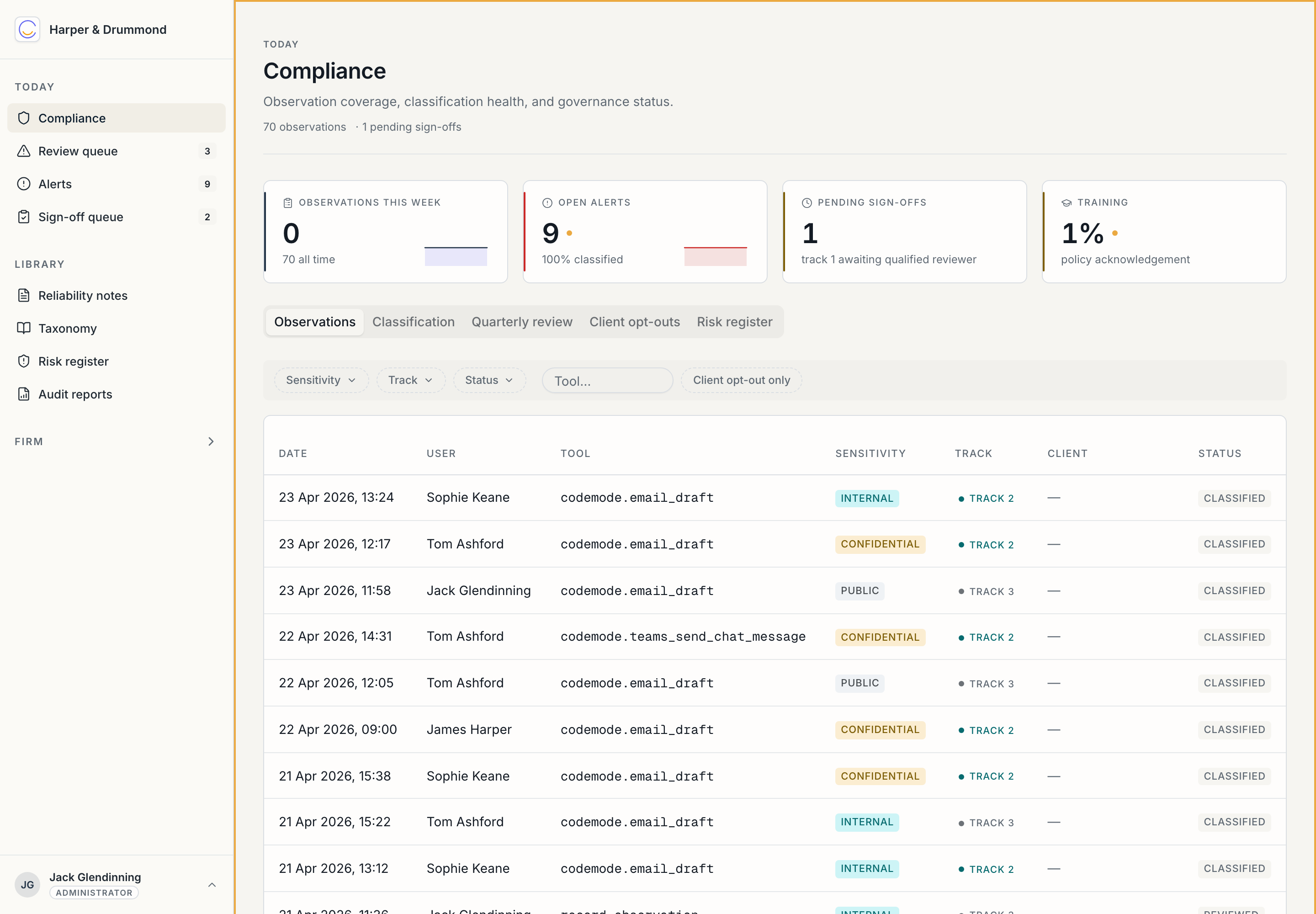
Compliance dashboard

At the top of the page, five stat cards give you the headline numbers:

Card What it shows
Total Observations The total number of AI-assisted actions captured across your firm.
Classified The percentage of observations that have been automatically classified by track and sensitivity. This should normally be at or near 100%.
Pending Sign-offs How many Track 1 observations are waiting for a qualified professional to review. If this number is high, it may need attention.
Dip Sampling The status of your current quarterly quality-assurance batch. Shows the batch progress or "No batch" if one hasn't been generated yet.
Training What percentage of your team has acknowledged the AI policy.

Classification breakdown

Below the stat cards, two panels show how your observations break down:

  • Sensitivity Tiers — a bar chart showing how many observations fall into each sensitivity level (public, internal, confidential, restricted), with percentages.
  • Track Distribution — a bar chart showing the split across Track 1 (formal deliverables), Track 2 (routine professional workflow), and Track 3 (non-material tasks). Also shows the overall classification rate, pending count, and average risk score.

Browsing observations

Below the charts, the Recent Observations table lists every captured action.

Filtering

Use the filter bar above the table to narrow your view:

  • Sensitivity — show only observations at a particular sensitivity level (e.g. "Confidential" only).
  • Track — filter by track (Track 1, 2, or 3).
  • Status — filter by status (e.g. "Classified", "Reviewed", "Pending").
  • Tool — type a tool name to filter by the type of action (e.g. "email_draft").
  • Client opt-out matches only — tick this checkbox to show only observations where a client opt-out keyword was detected.
  • Clear — reset all filters.

Table columns

Column What it shows
Date When the action took place.
User Who performed it.
Tool Which tool was used (e.g. email_draft, calendar_create, record_observation).
Sensitivity The sensitivity classification, shown as a coloured badge — for example, "Internal" (blue) or "Confidential" (amber).
Track Which track the observation was assigned to.
Client If the observation relates to a client with an active opt-out, the client name appears here with a "warned" or "blocked" badge.
Status The current status of the observation (e.g. "Classified", "Reviewed").

Below each row, a summary line describes what the AI did in plain English — for example, "Searched user's Outlook inbox for emails received today."

Client opt-out indicators

If an observation matches a client opt-out keyword, you'll see the client's name in the Client column along with a badge:

  • warned (amber) — the user was shown a warning that the client has opted out of AI use, but the action was allowed to proceed (for read-only tools like email search).
  • blocked (red) — the action was prevented entirely (for tools that create or send content, such as drafting an email or creating a calendar event).

Viewing observation detail

Click any observation row to see its full details. The detail page shows:

  • Metadata — the tool used, sensitivity level, track, timestamp, the user who performed it, latency, and any related identifiers.
  • Summary — a plain-English description of what the AI did and why.
  • Input / Output — where available, a preview of the data that went into the action and what came back (shown in a structured format).
  • Related events — other observations from the same conversation thread, so you can see the full sequence of actions the AI took in one session.

Click the back arrow to return to the compliance list.

Understanding classification

Every observation is classified along two dimensions.

Tracks

Track What it means What happens
Track 1 — Formal The AI contributed to a formal deliverable (e.g. a valuation report, a client letter). A reliability file note is auto-drafted. A named qualified professional must review and take responsibility.
Track 2 — Workflow Routine professional work (e.g. scheduling a site visit, searching for an email). Logged and included in quarterly dip-sampling checks.
Track 3 — Non-material Administrative or trivial tasks (e.g. summarising an internal note). Logged only — no review required.

Sensitivity levels

Level What it means
Public No confidential information involved.
Internal Information meant for internal use within the firm.
Confidential Client-sensitive or commercially sensitive information.
Restricted Highly sensitive data requiring the tightest controls.

The classification is determined automatically based on your firm's taxonomy (Material Impact Assessment). If the system isn't confident about a classification, it flags the observation for supervisor review — you'll find these in the Review Queue.