Feedback & profile
Two small pages that round out the user portal: Give Feedback and Profile.
Give Feedback
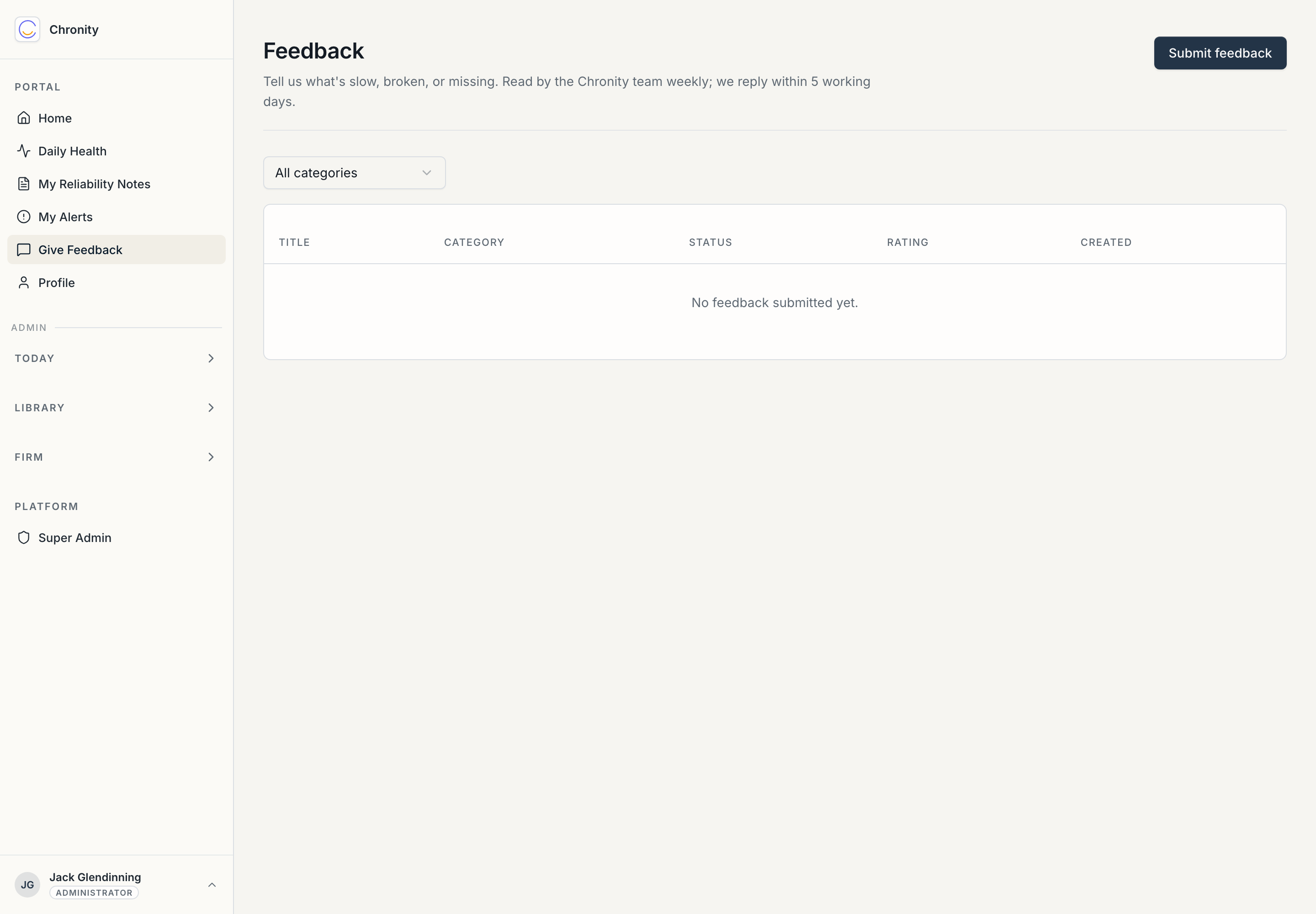
If something in Chronity is wrong, confusing, or just annoying — a reliability note that misread what you did, an alert that made no sense, a page that won't load — tell us here. It goes to your firm and to Chronity, and you can check the status of anything you've submitted.
This is the right channel for "the classification got this wrong" too. The taxonomy and the alert rules are tuned over time using exactly this kind of feedback, so it's worth a minute when something's off.
Profile
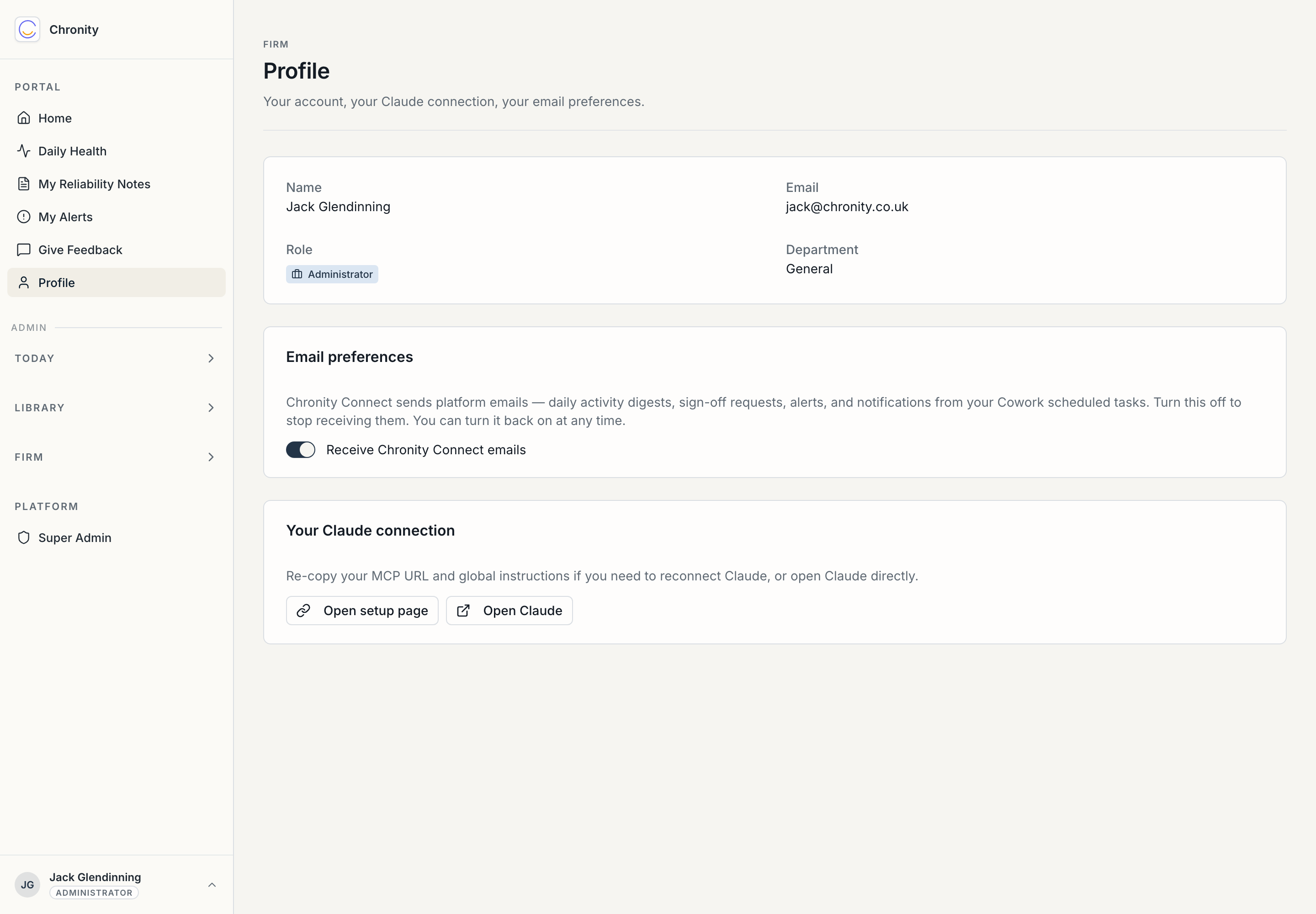
Your account, in three parts:
- Your details. Name, email, role, and department — as your firm set them. If any of these are wrong, your admin changes them (see Tenant-admin → Your team).
- Email preferences. A single toggle: Receive Chronity Connect emails. Chronity sends a few platform emails — the daily digest, alerts, the occasional notification from your Cowork scheduled tasks. Turn this off to stop them; turn it back on whenever you like. It doesn't affect the audit trail in any way — it only changes what lands in your inbox.
- Your Claude connection. Two buttons: Open setup page (to re-copy your MCP URL or your firm's global instructions if you ever need to reconnect Claude) and Open Claude (straight back to where the work happens).
That's the whole user portal. The short version of this entire guide: connect once, work in Claude normally, glance at Home now and then. Chronity does the rest.
If you're also an admin, continue to the Tenant-admin guide. If you sign your firm's MIA, also read the AI Lead reference.