Taxonomy
What this is
The taxonomy is the digital version of your firm's Material Impact Assessment (MIA) — the signed register of approved AI use cases. Each entry defines a specific way your team uses AI (e.g. "Draft client correspondence"), along with its default track and sensitivity level. The automatic compliance pipeline uses this taxonomy to classify every observation.
When you'd use it
Set up your taxonomy when you first configure Chronity Connect, and update it whenever your firm approves new AI use cases or changes the governance requirements for existing ones.
Walkthrough
- Click Taxonomy in the sidebar under Governance.
-
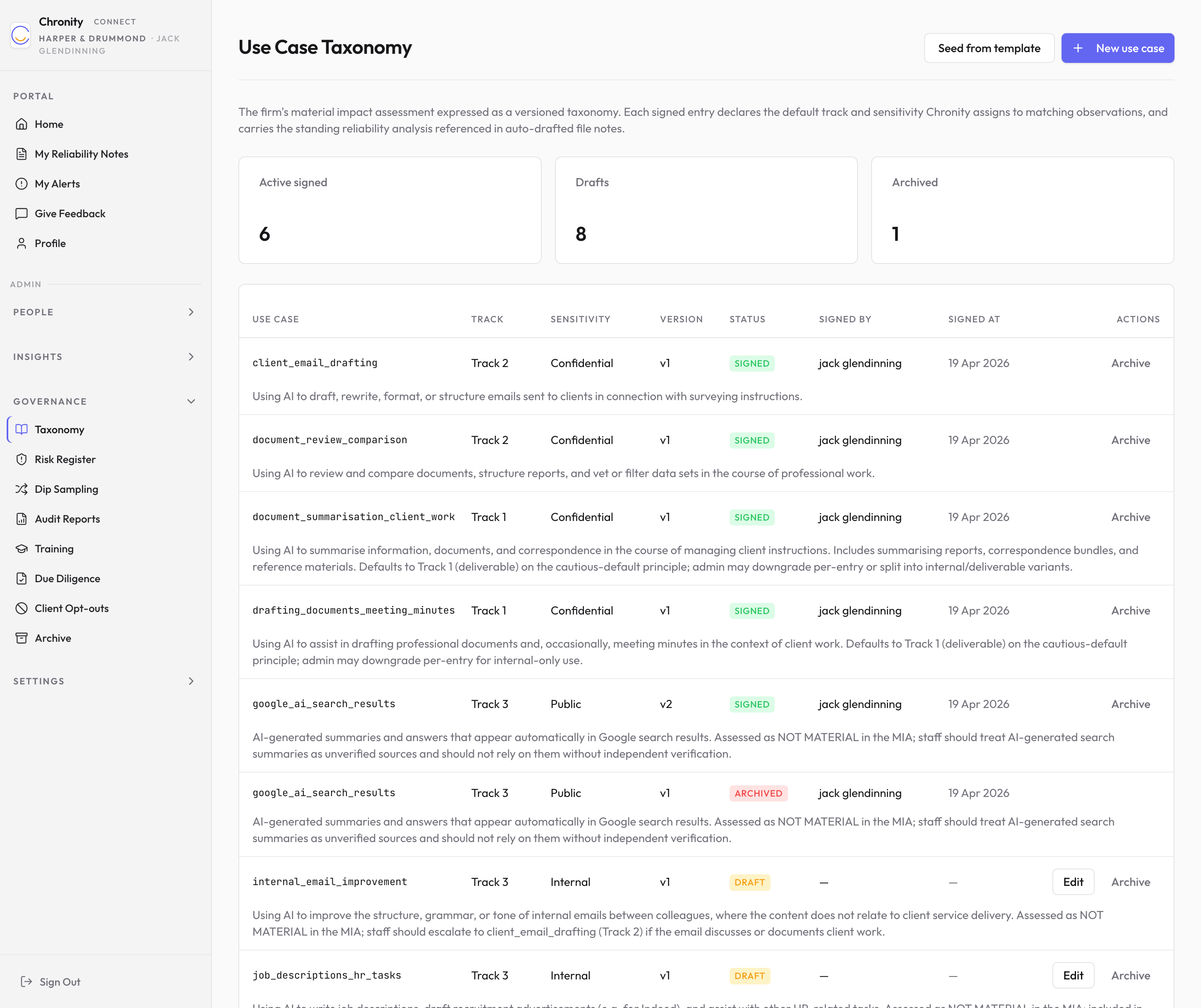
At the top, three stat cards show how many use cases are Active signed, in Draft, and Archived.
-
The table lists every use case, showing:
| Column | What it shows |
|---|---|
| Use Case | The use case identifier (e.g. client_email_drafting). Below it, a description of what the use case covers. |
| Track | The default track (1, 2, or 3). |
| Sensitivity | The default sensitivity level. |
| Version | The current version number. |
| Status | Signed (green — active and in use), Draft (amber — not yet signed), or Archived (grey — no longer in use). |
| Signed By | Who signed this version. |
| Signed At | When it was signed. |
| Actions | Edit (draft only) or Archive. |
Seeding from a template
If you're setting up your taxonomy for the first time:
- Click Seed from template (top right).
- Choose a template from the dropdown — Chronity provides industry-standard templates for surveying firms.
- Click Seed. This creates a set of draft use cases based on the template.
- Review each draft, edit as needed, then sign them individually.
Creating a new use case
- Click New use case (top right).
- Fill in the form:
- Use case ID — a short identifier (e.g.
valuation_report_drafting). - Description — what this use case covers.
- Default track — Track 1 (formal deliverable), Track 2 (routine workflow), or Track 3 (non-material).
- Default sensitivity — public, internal, confidential, or restricted.
- Standing reliability analysis — optional text that will appear in auto-drafted file notes for this use case.
- MIA section reference — optional cross-reference to the relevant section in your written MIA document.
- Use case ID — a short identifier (e.g.
- Click Save draft to save without signing, or Save and sign to make it active immediately.
Editing and signing
- Click a use case row to open its detail page, which shows the full description, standing reliability analysis, and metadata.
- Click Edit to modify a draft.
- Click Sign to make a draft active. You'll be asked to confirm — once signed, the use case becomes the live version used for classification.
- Click Create new version on a signed use case to create a new draft based on the current version.
- Click Archive to retire a use case that's no longer relevant.
Signing is permanent
Once you sign a version, it can't be edited — only superseded by a new version. That's deliberate: the signed version is the one your firm stands behind at that point in time.