Getting started
Signing in for the first time
When your organisation signs up for Chronity Connect, the first admin account is created during onboarding. After that, you can invite the rest of your team.
To sign in:
- Go to office.chronity.co.uk in your browser.
- Click Sign in with Microsoft. You'll be redirected to your organisation's Microsoft 365 login page.
- Sign in with your work email and password as usual.
- Once authenticated, you'll land on your Home page.
Tip
Chronity Connect uses your existing Microsoft 365 account — there's no separate password to remember.
Finding your way around
The left-hand sidebar is your main navigation. As an admin, you'll see two sets of links.
Portal — your personal section
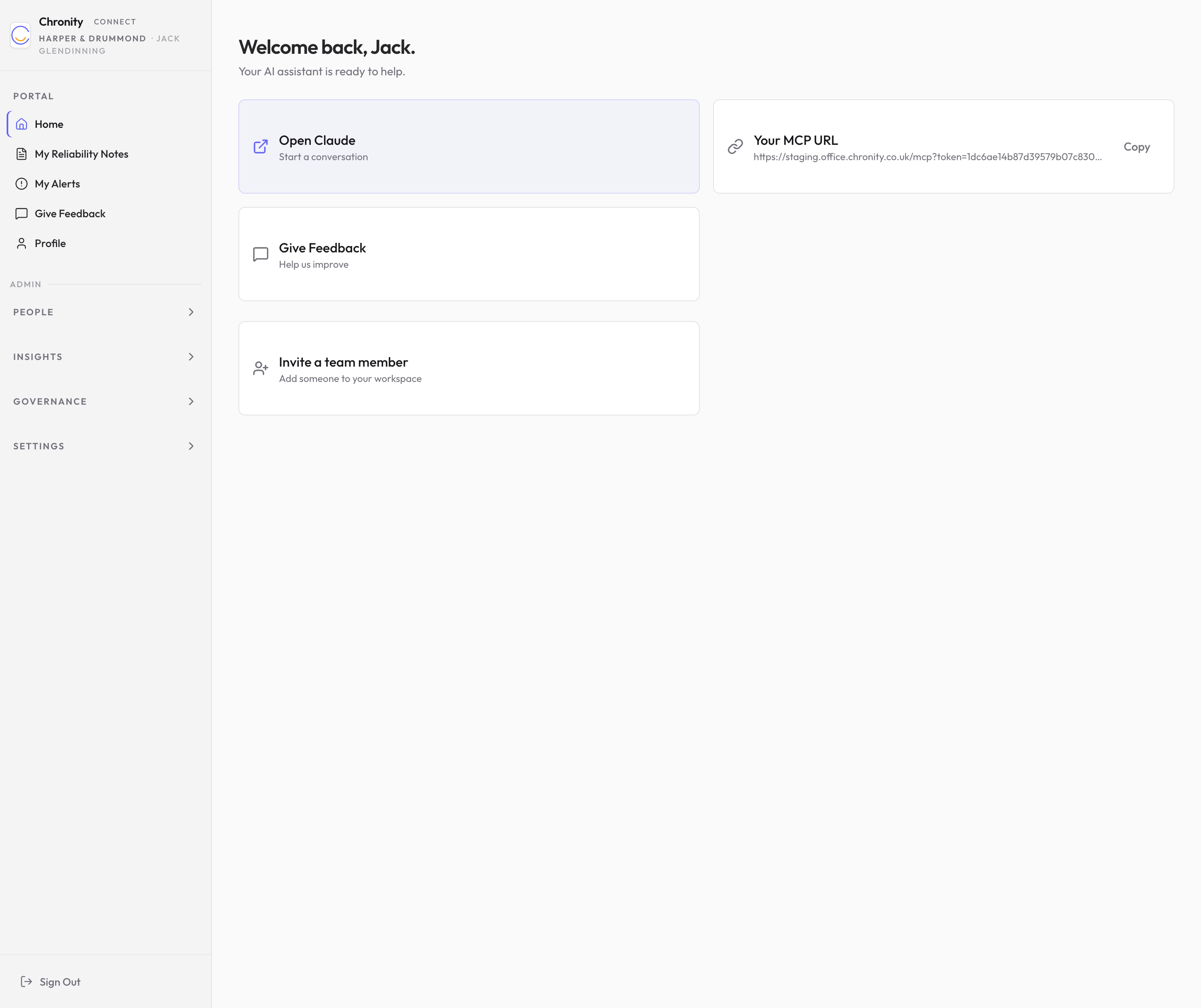
At the top of the sidebar, under Portal, you'll find:
- Home — your personal welcome page with quick-action cards for opening Claude, copying your MCP connection URL, giving feedback, and inviting team members.
- My Reliability Notes — file notes that relate to your own AI-assisted work.
- My Alerts — any compliance alerts that involve your activity.
- Give Feedback — submit feedback about Chronity Connect.
- Profile — your personal details and connection status.
Admin — your management section
Below the Portal links, you'll see the Admin section, organised into four collapsible groups.
People
- Dashboard — your at-a-glance compliance overview (see below).
- Users — view and manage everyone on your team.
- New User — invite someone new to Chronity Connect.
- Departments — organise your team into departments.
- Seats — see how many subscription seats you've used.
Insights
- Compliance — the full list of AI observations captured across your firm.
- Reliability Notes — auto-drafted file notes for the whole team.
- Alerts — compliance alerts that need your attention.
- Review Queue — observations the system has flagged for supervisor review.
- Sign-Off Queue — items awaiting qualified-professional sign-off (legacy feature, being phased out).
- Feedback — feedback submitted by your team.
Governance
- Taxonomy — your firm's Material Impact Assessment (use-case register).
- Risk Register — quarterly AI risk summaries.
- Dip Sampling — random quality-assurance checks on routine AI use.
- Audit Reports — quarterly and annual compliance reports.
- Training — AI policy acknowledgement tracking.
- Due Diligence — downloadable compliance documentation for clients.
- Client Opt-outs — manage clients who've declined AI use on their matters.
- Archive — search older observations that have been archived.
Settings
- Global Instructions — the standing instructions your AI assistant follows.
- Settings — organisation name and branding.
- Billing — subscription and payment details.
Tip
Click any group heading (People, Insights, Governance, Settings) to expand or collapse that section.
The admin dashboard
The Dashboard is the first screen you see when you click into the Admin section. It gives you a snapshot of your firm's compliance posture over the last seven days.
Compliance cards
Four cards across the top show your key metrics:
| Card | What it shows |
|---|---|
| Observations (7d) | How many AI-assisted actions were captured and classified in the last week. Click to view the full compliance list. |
| Pending sign-offs | How many Track 1 items are waiting for a qualified professional to review. Click to go to the sign-off queue. |
| Training compliance | What percentage of your team has acknowledged the AI policy. Shows "X of Y acknowledged". Click to see training records. |
| Classification | What percentage of observations were automatically classified (by rules or sampling). Should normally be at or near 100%. |
Each card includes a small trend line so you can spot changes at a glance.
Team cards
Below the compliance row, two cards show:
- Active users — how many team members are currently active, out of your total seat allocation.
- Pending invitations — how many invitations are still waiting to be accepted.
Quick actions
Four shortcut buttons let you jump straight to common tasks:
- Review sign-offs — go to the sign-off queue.
- Audit reports — generate or view compliance reports.
- Invite user — start the new-user invitation flow.
- All observations — browse the full observation list.
Team nudge
If you're currently the only user, you'll see a banner encouraging you to invite your team. Click Invite users or Dismiss to hide it.