Client opt-outs
What client opt-outs do
Some of your clients may ask that AI is not used on their matters. Chronity Connect lets you register those clients by keyword. Once registered, the system will:
- Block any attempt to draft an email, create a calendar event, or send a Teams message that matches the client's keywords. The action is refused, and the user is told why.
- Warn on all other tools (e.g. email search). The user sees a warning that the client has opted out of AI use, but the action is allowed to proceed for read-only operations.
- Log every match and refusal in the compliance dashboard, so you have a complete audit trail.
Adding and testing a keyword
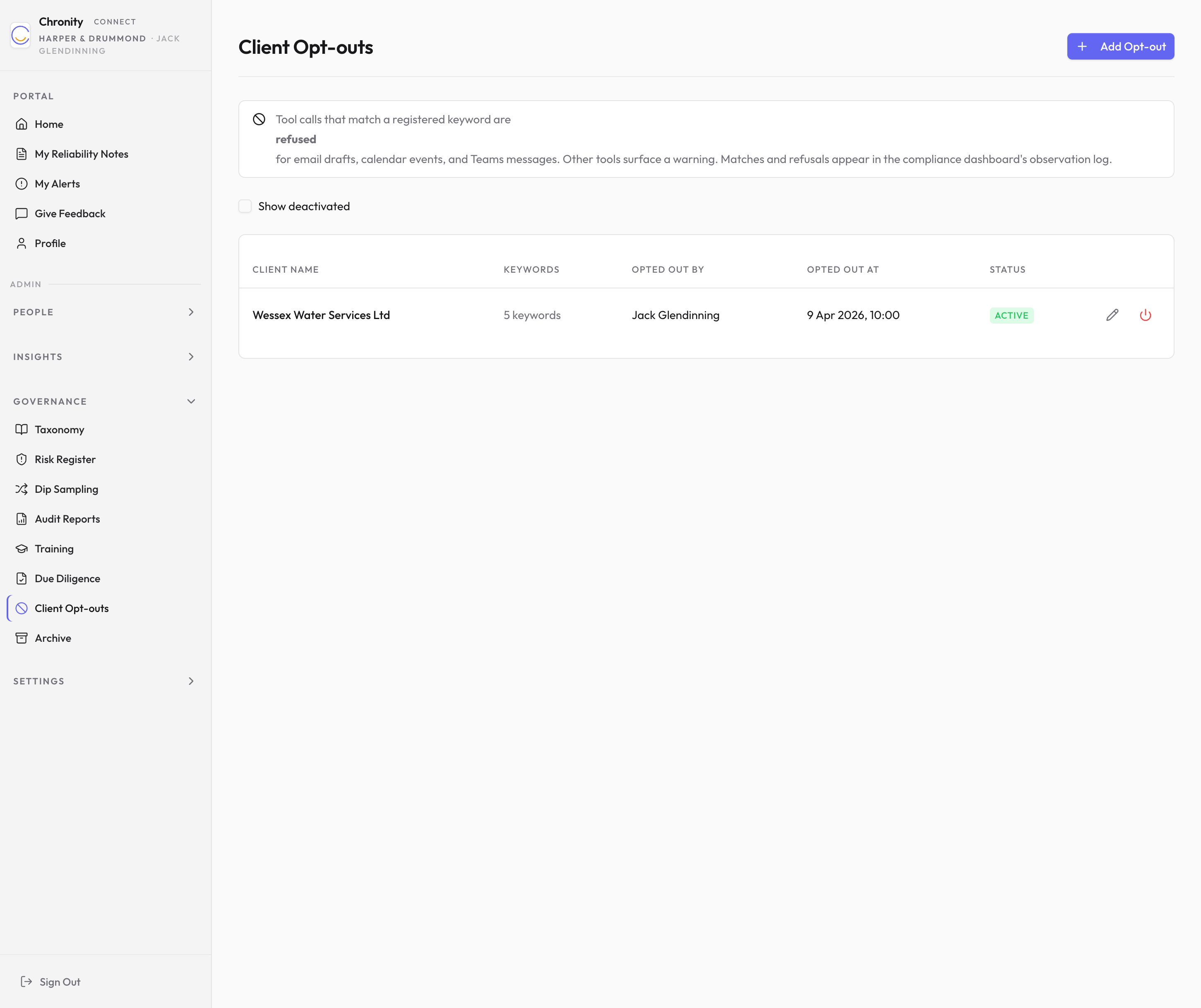
- Click Client Opt-outs in the sidebar under Governance.
-
Click Add Opt-out (top right).
-
In the dialog that appears:
- Enter the Client Name (e.g. "Candy Cooper").
- Add one or more Keywords that identify this client — for example, their name, company name, email address, or matter reference. The system will match these keywords against the content of every tool call.
- Use the Test your keywords feature to check whether a keyword would match against sample text. This helps you avoid overly broad keywords that might trigger false positives.
-
Click Save.
The opt-out takes effect immediately. Your team's AI assistant will start checking for keyword matches on every action.
Managing existing opt-outs
The table on the Client Opt-outs page shows:
| Column | What it shows |
|---|---|
| Client Name | The client's name. |
| Keywords | How many keywords are registered for this client. |
| Opted Out By | Who created the opt-out. |
| Opted Out At | When it was created. |
| Status | Active (green) or Deactivated. |
For each active opt-out, you can:
- Click the pencil icon to edit the client name or keywords.
- Click the power icon to deactivate the opt-out. You'll be asked to confirm — deactivating means tool calls matching those keywords will no longer be blocked or warned. The historical audit trail is preserved.
To see deactivated opt-outs, tick the Show deactivated checkbox above the table.
What your team sees when a match triggers
When someone on your team uses Claude and the content matches a client opt-out keyword:
- For email drafts, calendar events, and Teams messages — the action is blocked entirely. Claude tells the user that the client has opted out of AI use and the action cannot proceed.
- For all other tools (e.g. searching emails) — Claude shows a warning message naming the client and noting the opt-out, but allows the action to continue since it's read-only.
Both blocks and warnings appear on the compliance dashboard with "blocked" (red) or "warned" (amber) badges in the Client column, so you can monitor how often opt-outs are triggered.
Tip
Choose your keywords carefully. A very common word might trigger false matches. Use the test feature before saving to check that your keywords are specific enough.