File notes, alerts, and reviews
This chapter covers the three screens that make up your daily compliance routine: the auto-drafted reliability file notes, the alerts raised by the overnight classification cycle, and the review queue where the system asks for a human decision. The legacy sign-off queue is also described at the end — it's being phased out but remains available during the transition.
Reliability file notes
What this is
The RICS AI Standard requires a written record — a "reliability file note" — whenever AI contributes to professional work. Chronity Connect drafts these automatically overnight for every Track 1 observation, so your surveyors don't have to write them from scratch.
When you'd use it
Check this page to review the file notes that have been generated for your team. You'll also come here when preparing for audits or when a client requests evidence of your AI governance.
Walkthrough
- Click Reliability Notes in the sidebar under Insights.
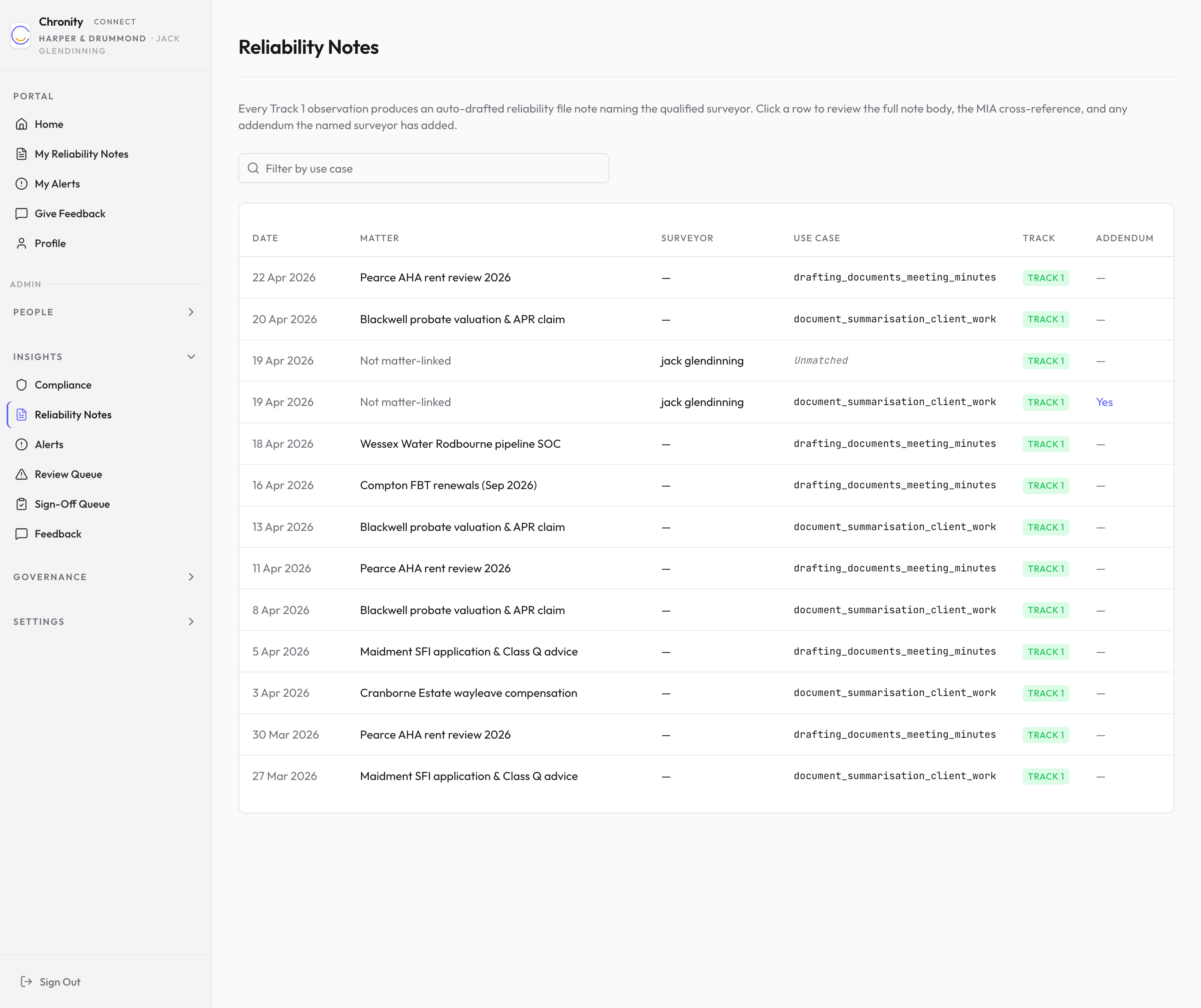
- You'll see a table of all auto-drafted file notes, with these columns:
| Column | What it shows |
|---|---|
| Date | When the note was generated. |
| Matter | The matter or project the observation relates to (if linked). Shows "Not matter-linked" if the observation wasn't tied to a specific matter. |
| Surveyor | The team member whose AI action triggered the note. |
| Use Case | Which taxonomy entry (from your MIA) the observation was matched to, or "Unmatched" if the classifier couldn't find a match. |
| Track | Always Track 1 (since file notes are only drafted for formal deliverables). |
| Addendum | Whether the named surveyor has added a personal addendum to the auto-drafted note. Shows "Yes" or "—". |
- Use the search box at the top to filter by use case.
- Click any row to open the full file note.
File note detail
The detail page shows:
- The auto-drafted note — written in the first person from the surveyor's perspective, explaining how AI was used and confirming the responsible professional has reviewed the output.
- MIA cross-reference — which use case from your taxonomy applies.
- Addendum — if the surveyor has added their own note (e.g. additional context about the work), it appears below the auto-drafted text.
Tip
Encourage your surveyors to check their own file notes via "My Reliability Notes" in their personal portal. They can add an addendum to any note if they want to record extra context.
Things to know
- File notes are generated overnight by the classification cycle. You won't see a note appear until the morning after the observation was captured.
- Each note names the qualified professional responsible for the work, drawn from the user's profile.
- Notes can be exported for inclusion in project files or audit packs.
Alerts
What this is
Alerts are real-time compliance exceptions detected by the overnight classification cycle. They flag observations that may need immediate attention — for example, restricted data appearing in an email draft, bank account references in AI content, or unusual patterns of activity.
When you'd use it
Check the Alerts page whenever you see a non-zero count on your dashboard, or when you receive an alert notification email. Treat open alerts as items that need investigation and acknowledgement.
Walkthrough
- Click Alerts in the sidebar under Insights.
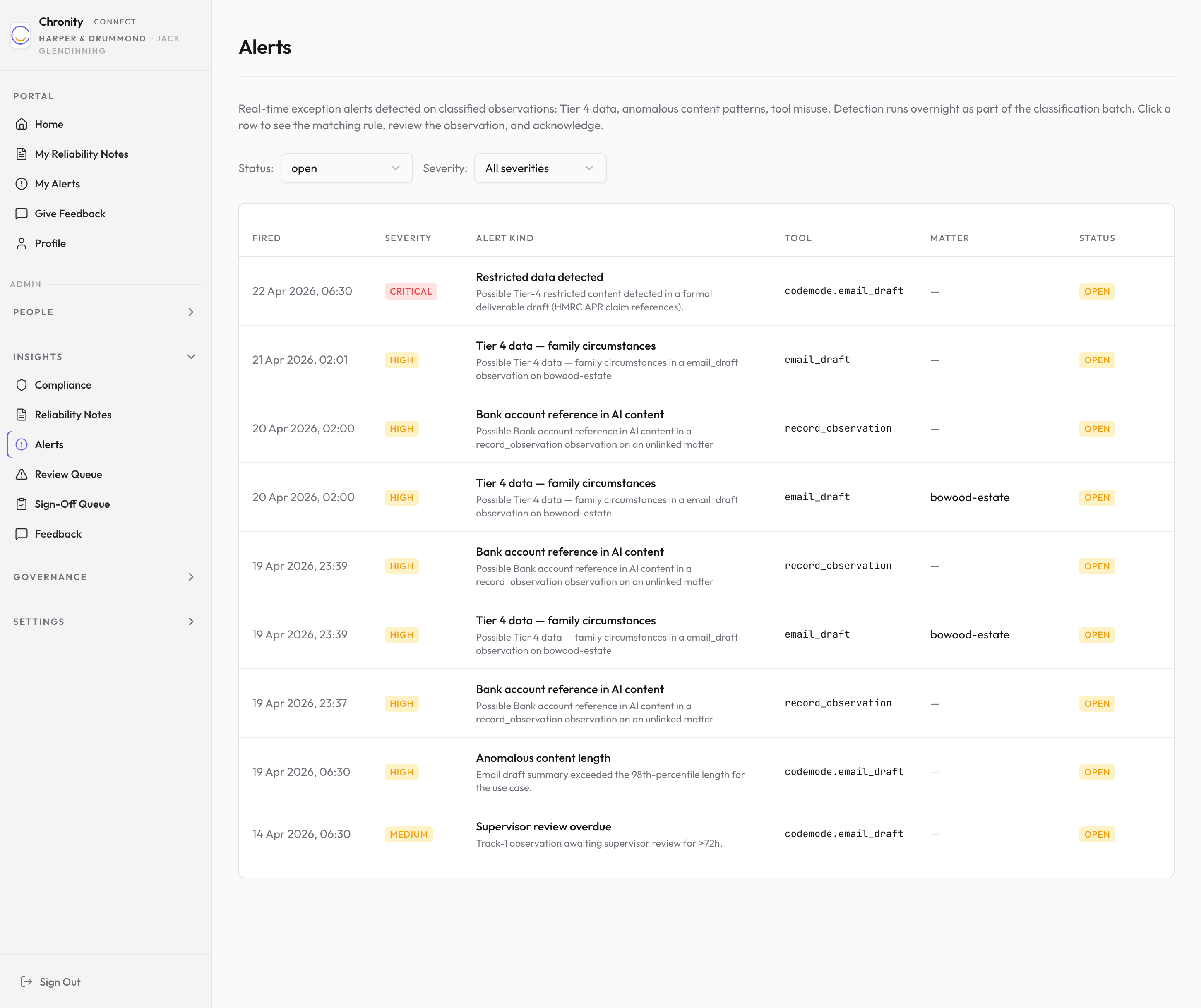
-
You'll see a table of all alerts, with filters at the top:
- Status — filter by open, acknowledged, or dismissed alerts.
- Severity — filter by critical, high, medium, or low severity.
-
The table shows:
| Column | What it shows |
|---|---|
| Fired | When the alert was generated. |
| Severity | The severity level (shown as a coloured badge — red for high/critical, amber for medium). |
| Alert Kind | What type of issue was detected — for example, "Tier 4 data — family circumstances" or "Bank account reference in AI content". |
| Tool | Which tool was involved (e.g. email_draft, record_observation). |
| Matter | The matter reference, if applicable. |
| Status | Whether the alert is Open (needs attention), Acknowledged, or Dismissed. |
- Click any row to see the full alert detail.
Alert detail
The detail page shows:
- Alert summary — a plain-English description of what was detected.
- Detection details — click "Show why this fired" to see the specific rule that triggered the alert and the evidence.
- Linked observation — a link to the underlying observation, so you can see the full context.
- Notified recipients — who received an email notification about this alert (and whether the email was delivered).
- Acknowledge — if the alert is open, you can type an optional note (up to 500 characters) and click Acknowledge to mark it as reviewed. This records who acknowledged it and when.
Things to know
- Alerts are generated overnight as part of the classification cycle, not in real time.
- The alert detection rules cover scenarios like restricted data exposure, anomalous content patterns, and tool misuse. The specific rules are set by your compliance configuration.
- Both admins and supervisors receive alert notification emails. Supervisors only see alerts for their direct reports.
- Acknowledging an alert doesn't delete it — it's kept as part of your audit trail.
The review queue
What this is
The Review Queue shows observations where the classifier wasn't confident enough to assign a classification automatically. These need a supervisor or admin to confirm (or override) the classification.
When you'd use it
Check this queue regularly. When the classifier can't confidently match an observation to a use case in your taxonomy, it flags it here for human review. An empty queue means the classifier is handling everything confidently.
Walkthrough
- Click Review Queue in the sidebar under Insights.
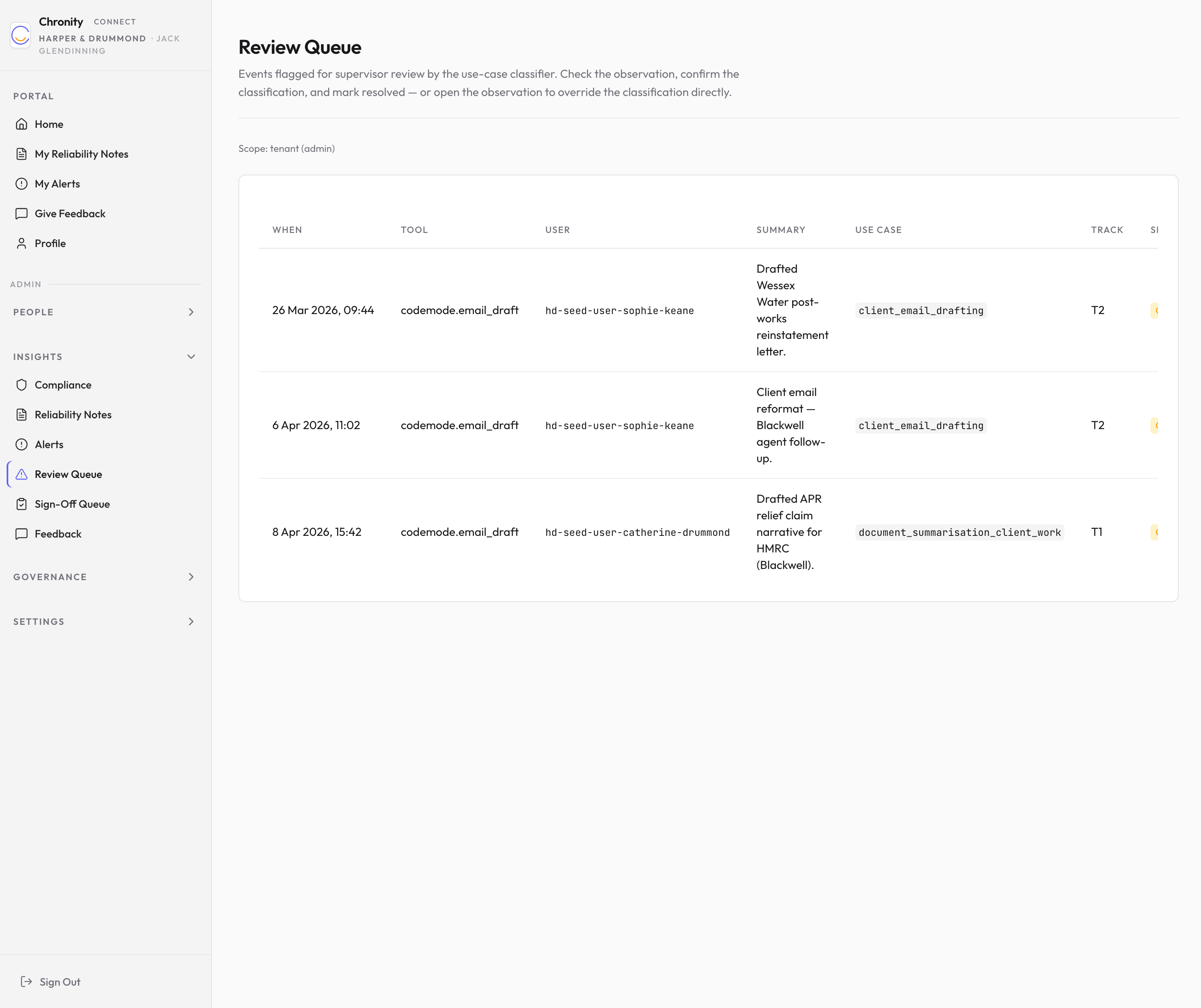
-
At the top, you'll see your scope — as an admin, this shows "tenant (admin)", meaning you see flagged observations from the entire firm. Supervisors see only their direct reports.
-
If there are items to review, the table shows:
| Column | What it shows |
|---|---|
| When | When the observation was captured. |
| Tool | The tool that was used. |
| User | Who performed the action. |
| Summary | A plain-English description of what the AI did. |
| Use Case | The best-guess use case match from your taxonomy. |
| Track | The suggested track classification. |
| Sensitivity | The suggested sensitivity level. |
-
For each item, you can:
- Click Open to view the full observation and, if needed, override the classification.
- Click Mark resolved to confirm the suggested classification and remove it from the queue.
-
If the queue is empty, you'll see a message: "Nothing waiting for review."
Things to know
- The review queue only appears when your firm's automatic compliance pipeline is active.
- Items stay in the queue until a supervisor or admin resolves them.
- Overriding a classification creates an audit record of who changed it and why.
The sign-off queue (legacy)
Note
The sign-off queue is being phased out in favour of the automatic compliance model (reliability file notes + review queue + alerts). It remains available during the transition period.
What this is
The Sign-Off Queue shows Track 1 observations that are waiting for a qualified professional to formally approve them. This was the original compliance workflow before the automatic file-note system was introduced.
Walkthrough
- Click Sign-Off Queue in the sidebar under Insights.
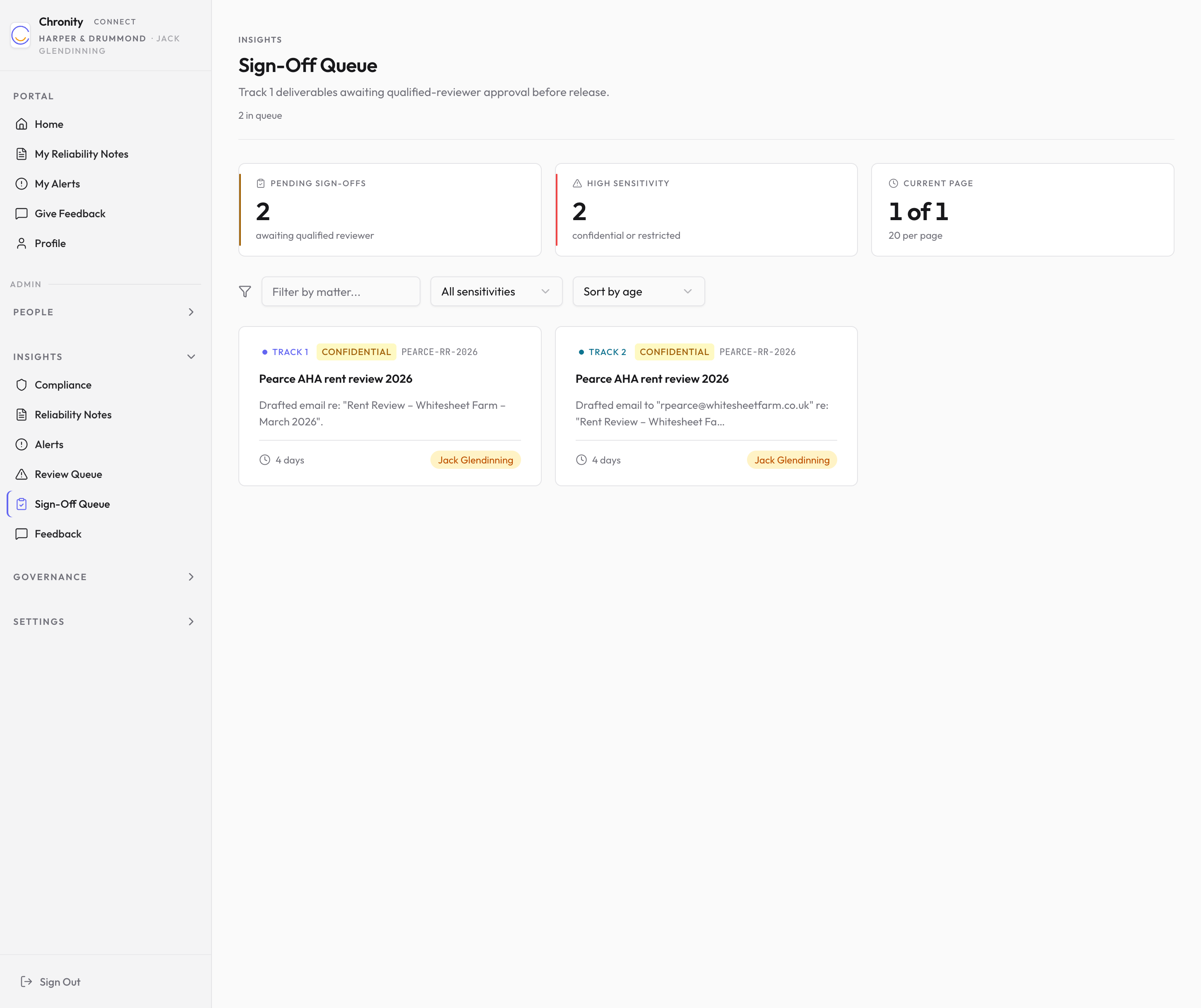
-
At the top, three stat cards show:
- Pending sign-offs — how many items are awaiting review.
- High sensitivity — how many of those are classified as confidential or restricted.
- Current page — pagination info.
-
Use the filters to narrow your view:
- Filter by matter — search by matter reference.
- Sensitivity — filter by sensitivity level.
- Sort — sort by age, matter, or sensitivity.
-
Each pending item appears as a card showing the track, sensitivity, matter reference, a summary of what the AI did, how old the item is, and which team member performed the action.
-
Click a card to open the detail view, where a qualified reviewer can approve, reject, or request changes.
Things to know
- Only users with the "can sign off Track 1" permission and a professional registration (e.g. MRICS) can approve items in the sign-off queue.
- The automatic file-note system now handles most of the compliance record-keeping that the sign-off queue was designed for. Your firm will transition fully to the new model in due course.