Feedback
What this is
The Feedback page shows you what your team thinks about Chronity Connect. Users can submit feedback from their personal portal (via the Give Feedback link in the sidebar), and it all lands here for you to review and respond to.
When you'd use it
Check this page periodically to understand how your team is finding the platform. It's also useful for spotting issues — if several people report the same problem, you'll see it here.
Viewing team feedback
- Click Feedback in the sidebar under Insights.
-
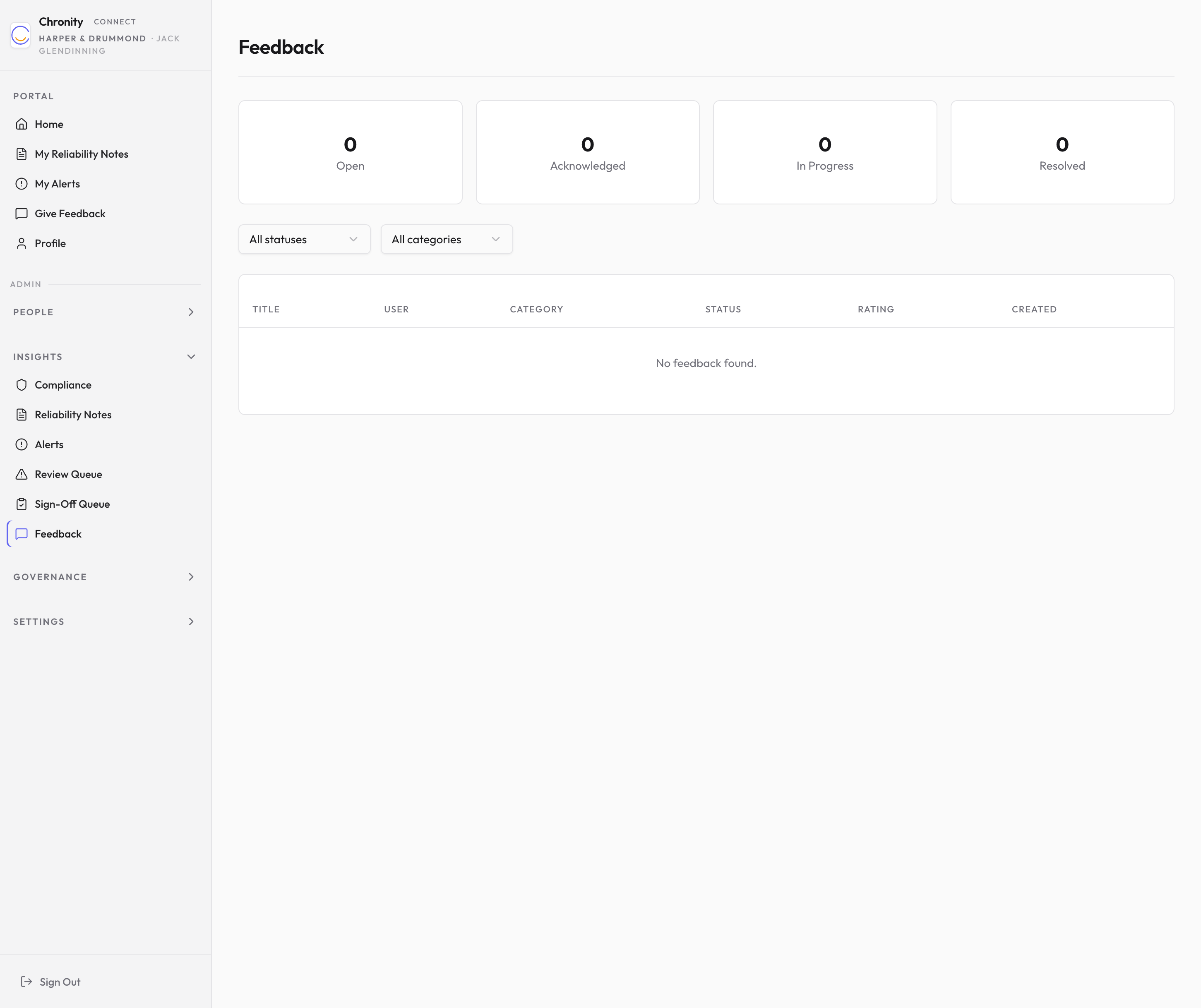
Four stat cards at the top show how many items are Open, Acknowledged, In Progress, and Resolved.
-
Use the filters to narrow the list:
- Status — all statuses, Open, Acknowledged, In Progress, Resolved, or Closed.
- Category — filter by feedback category.
-
The table shows:
| Column | What it shows |
|---|---|
| Title | The subject of the feedback. |
| User | Who submitted it. |
| Category | The type of feedback. |
| Status | The current status. |
| Rating | A star rating, if the user provided one. |
| Created | When it was submitted. |
Responding to feedback
- Click any row to expand it and see the full details.
- Read the user's description of their feedback.
- To update the status, choose from the dropdown (Acknowledged, In Progress, Resolved, or Closed) and click Save Status.
- To reply, type your response in the Add Response text area and click Send Response. Your response will be visible to the user.
- Any previous responses appear above the reply box, showing who responded, their role, and when.
Tip
Acknowledging feedback promptly shows your team that their input is valued and helps build confidence in the platform.